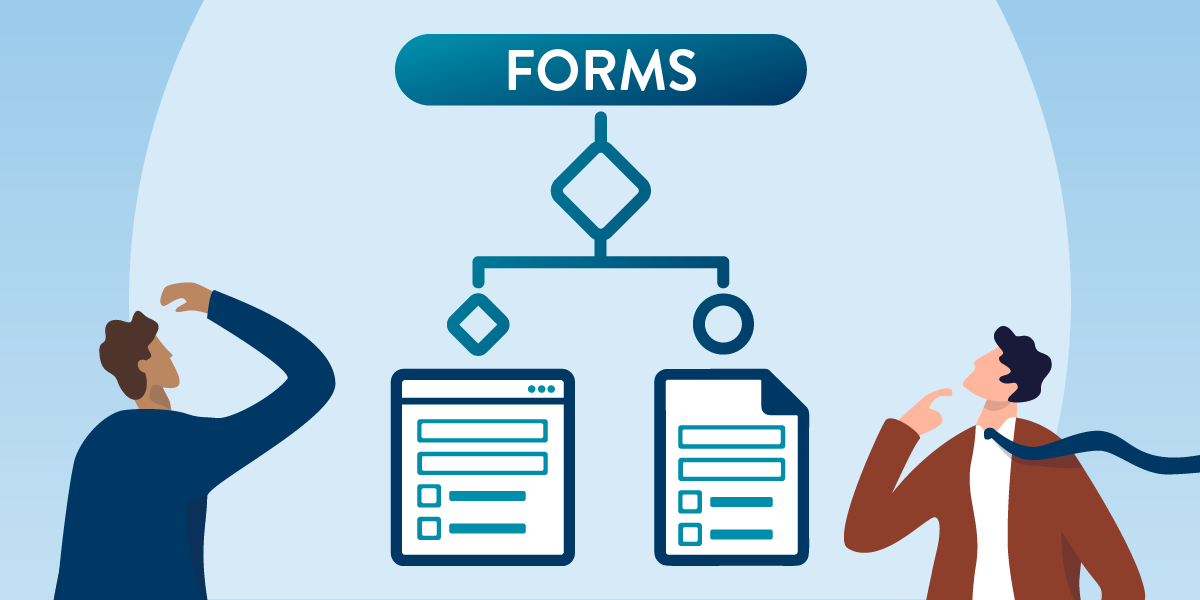
When your team creates a digital form for employees or the public, it may be tempting to begin by asking, “Should we use an online form or a fillable PDF?” The right answer depends on the form’s purpose and how people will use it.
Choosing the right format starts with understanding what your form needs to accomplish—not selecting a tool.
When your team creates a digital form for employees or the public, it may be tempting to begin by asking, “Should we use an online form or a fillable PDF?” The right answer depends on the form’s purpose and how people will use it.
Before selecting a format, consider your users’ needs, the information you need to collect, required features, how you will process and protect the information, and who will maintain the form. Consider accessibility from the beginning. Your answers will help you select the tool or combination of tools that best fit your organization’s needs. An online form or application-based solution may work best in some cases. Other times, a fillable PDF may be the right choice. This article explains when a fillable PDF may be the right choice and what to consider when selecting and maintaining the tool used to create it.
Use the decision checklist in this article to work through your form requirements. You can also use the accompanying decision-grid template to compare potential tools based on the needs you've identified.
Considering User Experience (UX) and accessibility
Before getting into the specific form considerations, start with the people who will use the form. A human-centered UX approach considers how people will interact with the form and looks for ways to make the experience as simple and clear as possible. Accessibility should be part of this process from the beginning, regardless of the features or functionality you need.
Consider ways to:
- Keep the form as short as possible.
- Reduce unnecessary steps.
- Use clear, concise language.
- Reduce cognitive load.
- Make it easy for people to understand what information is needed.
- Make it easy to complete the form.
Here are a few resources with additional guidance on form UX:
Accessibility is part of a good user experience. A human-centered approach considers accessibility from the start, helping create forms that work well for everyone.
Why accessible forms matter
Accessible forms allow people with disabilities to understand, navigate, complete, and submit information using assistive technology (AT) and other tools they rely on.
For Minnesota state agencies, accessibility is also required. State employees and vendors hired by the state must follow the State of Minnesota's Digital Accessibility Standard.
State and local governments also must comply with updated ADA Title II requirements. The compliance deadlines are:
- April 26, 2027, for entities with populations of 50,000 or more.
- April 26, 2028, for smaller entities and special district governments.
Starting with accessibility can also make the development and remediation process more efficient. Addressing accessibility as part of the initial design can reduce the need to identify and fix issues later.
Accessible forms should allow people to interact with form controls using the technologies they rely on, whether they view the form visually, have content read aloud by a screen reader, or use other assistive technology such as an alternative keyboard or screen magnification.
Decision checklist
Here’s a quick reference list. We will expand on each in the next sections.
- Purpose & audience (what is it for, who will complete it, and how will they access it)
- Must‑have features (simple, complex logic, signatures, accessibility support)
- Security and data needs (integration, privacy, protection, and retention)
- Maintenance (workflow, sustainability, version control, form ownership, accessibility upkeep)
- Investment (cost for the tool(s), internal and external data storage capacity needs; staff training and ongoing development)
Purpose & audience
Define the purpose of the form and who it is intended for:
- Who will complete the form, and what is it for?
- Internal forms may have different tools and systems available than those we use with external audiences and non-employees. Some audiences may have specific requirements or preferences for tools and use.
- How will they access it? (mobile devices, tablets, laptops)
- Where the form is posted or how it is shared may impact what tools you use.
- PDF forms may be able to be posted to a website, stored on a shared drive, or sent via email.
- Applications or online tools may require an internet connection or have off-line capabilities.
- Digital forms may mean users need to have internet access.
- Ensure the tool you choose has capabilities for the end user to complete the form using AT or without a mouse.
- Do you need to provide designed printable document (PDF) version of this form? This article’s focus is on digital forms, but we understand this is a consideration for many forms teams.
Once you have the scope, you can decide the right form type, including a fillable PDF form, based on accessibility, features, security, data need, internal workflow, maintenance, and investment.
Must-have features
- Can people access and submit the form using their preferred technology?
- Consider the entire experience, from opening and completing the form to saving and submitting it. The form and its submission process should be usable with the technologies your intended audience may use.
- Is your form simple and straightforward, or does it need specialized functionality?
- A PDF form may be appropriate for simple forms with a relatively straightforward set of questions and fields.
- For survey-style forms that need to collect and analyze responses, consider an online form tool.
- More complex forms may need a more complex or custom-built tool.
- Do you need signatures or other features of a document‑style layout?
- A PDF form may be appropriate when the form needs to preserve a document-style layout, support digital signatures, or be printed and signed.
- Some application-based form tools can be used to collect and support signatures. Not all application-based tools can create accessible printable (PDF) documents.
- Do you need pre-built templates?
- A PDF form may be appropriate if you have an existing document or template that needs to become a fillable form.
- Many application-based data collection tools have “templating” capabilities, allowing you to create forms with branding and other considerations.
- Consider whether the tool supports creating and maintaining accessible templates.
- Do you need robust workflow automation, audit trails, or payment processing?
- Consider tools that support advanced integrations, workflows, audit trails, or payment processing. These needs may be beyond the capabilities of a PDF form.
- Are complex logic or multi‑step processes needed?
- Branching, conditional logic, or complex multi-step workflows are better supported by application-level experiences or workflow tools. These needs may be beyond the capabilities of a PDF form.
- Does the tool of your choice support the accessibility features you need?
- Both application-based forms and PDF forms can support many accessibility features, including: accessible structure, form field labels, keyboard navigation, and other features needed to support AT. The specific capabilities will depend on the tool you use.
Security and data needs
Coordinate with your data/privacy teams to help with these considerations.
- Will it integrate into your environment and meet security standards?
- Consider if the tool will integrate with organization workflows, security standards and procedures, and resources.
- Note: Integration and security changes can affect accessibility. If anything changes, even after implementation, it is important to reassess accessibility.
- Does it need to protect private data?
- If the form collects private, confidential, or sensitive information, consult your security, privacy, and records-management teams to determine whether the form and its submission/storage process meet your requirements.
- What happens to the information after the form is submitted?
- Consider where submitted forms and their data will be stored and how staff will access and manage that information.
- If you need responses to flow automatically into a database, dashboard, or workflow, consider a form tool with built-in integrations. If you need to integrate with existing systems, determine if the tool you choose has capability and meets your requirements.
- Plan for retention or audit trail requirements.
- PDF forms can collect information electronically, but processing responses may require manual data extraction or additional tools.
- Other considerations: Downstream systems (databases, dashboards)
- Accessibility and manual data entry/extraction within these systems is out of the scope of this article’s focus, however, we recognize it is an important consideration when managing different form publishing platforms.
Maintenance
The primary question here is who/what team(s) own the form? Once that is flushed out, then this team must create a workflow to maintain the form process.
- Who has the skills to create and maintain this form both functionally and for accessibility?
- Keep ongoing maintenance needs (staff availability and costs) in mind when choosing your tool.
- Application-based forms often require careful setup and may need some programming knowledge to ensure a useful and accessible end product.
- PDF forms require specialized knowledge to set up properly and remediate for accessibility before they can be shared and used.
- Consider whether your organization has staff with the skills to update, remediate, and retest the form when changes are made.
- Who will test the resulting form (form output)?
- All forms require both automated and manual accessibility testing.
- Consider whether your organization has the expertise and resources to test and maintain the form's accessibility, including its usability with AT. This may require testing within the form tool or using another tool available to your form remediators.
- If the chosen tool has accessibility limitations, can they be addressed another way?
- Accessibility features and behaviors depend on the capabilities of the tool used to create and remediate the form.
- If the tool you were considering cannot meet the needs, consider whether limitations can be addressed through another tool, a different approach to creating the form, or by working with the software vendor or IT staff.
Sustainability
- How often will the form change?
- Survey tools can often handle regular edits well but may need to have data downloaded before edits are published.
- If updates are frequent (monthly or quarterly), PDF forms might introduce more overhead than a survey or browser-based form:
- Multiple stored versions, increasing the risk of outdated fields, missing required notices, and inconsistent tagging.
- Break tagging if not completed carefully.
- Needs remediation after every edit, no matter how small.
- Depending on the tool, some application-based forms may need to go through management approvals, security audits, programming and testing, and other procedures with edits.
Accessibility upkeep
- When forms evolve over years, accessibility can degrade unless:
- Tagging rules are followed.
- Labels and instructions for form fields are updated consistently.
- Templates are maintained.
- Who is responsible for testing accessibility after changes?
- All forms require manual upkeep. Remediation and thorough testing will be continuous and ongoing.
Investment
- Cost of the tool?
- Some survey tools are available to all staff via enterprise licensing.
- Many survey tools, and document/PDF form tools come with an additional licensing cost.
- Most application-based tools will have a cost associated with creation and maintenance.
- Internal and external data storage capacity needs may require additional expenses.
- Consider cost to store your data.
- Blank PDF forms take up storage space, along with the file received from the end-user with the data input.
- What is the investment in staff training and ongoing development for staff to work in the tool? Including accessibility remediation and testing.
- Both application-based forms and PDF forms require specialized skills and training to remediate for accessibility.
Decision grid template
You’ve done the work to define your form’s needs. Let’s take a look at how you can set that up in a decision grid spreadsheet as a reference tool. You can insert your checklist items and your form publishing tool considerations into your decision grid. Then use the checklist to see how it stands up to your needs.
- /mnit/assets/Fillable%20Forms%20Decision%20Grid-TEMPLATE_tcm38-766339.xlsxFillable Forms Decision Grid TEMPLATE (xlsx)
Closing
No single form tool works best in every situation. Choose an approach that supports the people completing the form, meets accessibility and security requirements, addresses your data needs, and allows your organization to maintain the form over time. In some cases, a fillable PDF may be the right choice.
This checklist and decision tree do not cover every consideration, even for simple forms. However, they can help your organization begin developing a consistent forms process grounded in human-centered design and accessibility.
Have additional questions or thoughts about working with fillable PDF forms? Contact us at MNITAccessibility@state.mn.us.
Subscribe to our Newsletter
Would you like to learn more about the accessibility work being done by Minnesota IT Services and the State of Minnesota? Once a month we will bring you more tips, articles, and ways to learn more about digital accessibility.
Subscribe Today