
Accessible PDF Training
Welcome to the State of Minnesota’s free e-Learning program on how to create accessible PDF documents. Each module is short and focuses on a single topic. If you are new to PDF accessibility, start at the beginning and work your way through the number sequence. If you have some experience with accessibility, start with the introduction, “Getting Started,” then select whatever topic you need to learn right now.
Training Modules
1: Getting Started
A brief overview of familiarizing yourself with Acrobat Pro, how to set up your software for maximum productivity, and key first steps to creating accessible PDFs. For example, start with an accessible source document.
Launch ModuleGetting Started Transcript (.docx)
2: Document Properties
Setting your document properties.
Launch ModuleDocument Properties Transcript (.docx)

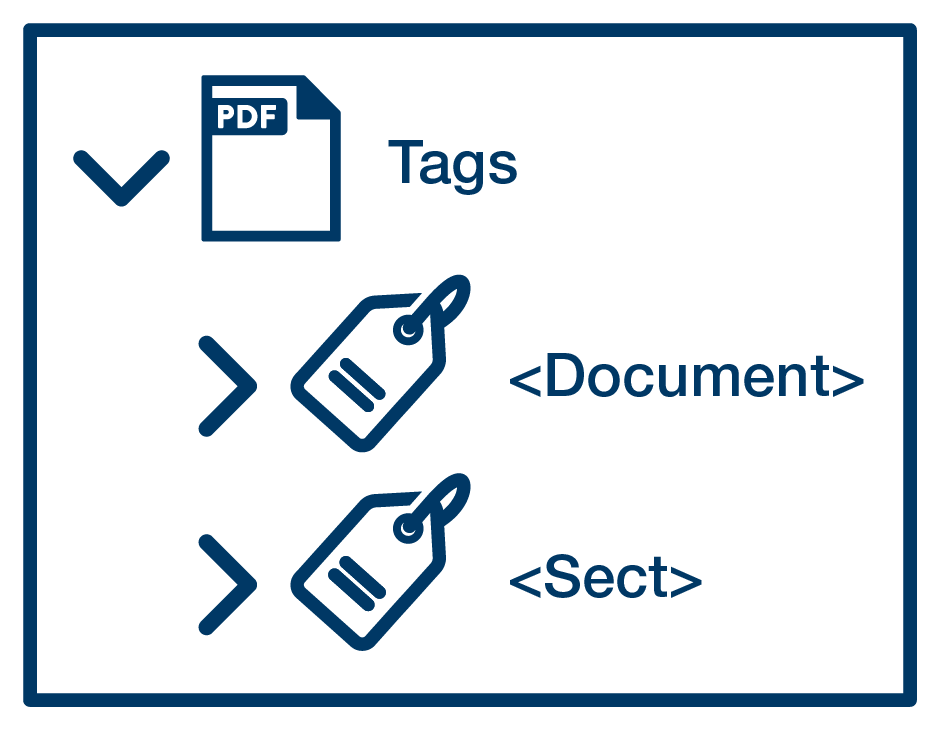
4: Reading Order Tool
How to walk the tag tree and what it does for you.
Launch ModuleReading Order Tool Transcript (.docx)
5: Document Structure and Bookmarks
How to walk the tag tree and what it does for you.
Launch ModuleDocument Structure and Bookmarks Transcript (.docx)

7: Images
About Figure tags, alternate (alt) text, captions, and decorative images
Launch ModuleImages Transcript (.docx)

10: Testing
How to use the accessibility checker and understand the results.
Launch ModuleTesting Transcript (.docx)