
WCAG 2.1 & Business Systems Analysis, Business Analysis, and User Experience and Design
If you work in Business Systems Analysis (BSA), Business Analysis (BA), or User Experience (UX) and Design, you must ensure that your digital projects, operations, and maintenance work remain accessible to everyone, including people with disabilities.
In these roles, you ensure that teams address digital accessibility during planning, elicitation, or design. You help the team understand which criteria apply and ensure those requirements are reflected in project requirements and designs.
This page provides information you need to meet WCAG 2.1, Level A and Level AA requirements.. However, not every criterion will apply to every solution.
- Review other roles for more specific details on relevant criteria, such as Content Authoring, Development, and GIS/Maps.
- For general accessibility training, return to Office of Accessibility homepage and review the Accessibility Resources.
Note: Meeting accessibility standards "on paper" does not ensure a good user experience. Validating usability and inclusion with human-centered design (HCD) practices must also be incorporated.
What you can expect from this role's content:
- Learn what WCAG 2.1 success criterion are required to be met.
- Explore useful accessibility testing tools.

Which WCAG 2.1 Success Criteria impact BA, BSA, & UX Design?
Note: WCAG 2.1 success criteria (SC) do not apply to every solution.
IMPORTANT note for vendors/contractors: Because not all WCAG 2.1 criteria apply here, you must understand any other form of digital technology you create for the State of Minnesota must meet all WCAG 2.1, Level A and Level AA criteria when applicable. And what testing tools you need to use to validate. Refer to the state's Digital Accessibility Standards for more details.
Review WCAG 2.1’s 12 new Success Criteria
Visit the WCAG 2.1 Overview Training page. This will list the 12 new Success Criteria with links to W3C’s informational web pages, including techniques for implementing criterion successfully.
Including accessibility at the start prevents rework, keeps costs down, and increases product quality. Key phases include:
- Requirements elicitation and documentation.
- UX research and product design.
- Wireframe annotation and review.
- Setting review checkpoints throughout lifecycle.
People in these roles need to understand which criterion are relevant as well as how to plan for and evaluate their implementation.
Analysts, designers and other similar roles should be familiar with roles relevant to the project’s stage. For example, the Development role calls out expectations for BAs regarding 4.1.3 status messages.
They also should understand how to validate that the technology behaves as expected once it is implemented.
See below for helpful tools to consider for creating and testing for accessible digital experiences.
Testing tools
Many tools are available to test your solution/work. Some require downloading and additional training.
*Important Note: Automated testing tools are helpful to use, but do not replace manual checks.
Keyboard-only testing
This manual form of testing uses only your computer’s keyboard to tab through your digital solution and ensure all interactive elements can be accessed and engaged with using only the keyboard. Interactive elements must also have a visible keyboard focus.
- View the Office of Accessibility’s common keyboard shortcuts quick card
- Read WebAIM’s overview of keyboard accessibility
Color contrast
SC 1.4.3 Contrast (Minimum) requires a contrast ratio of at least 4.5:1 for normal text and 3:1 for large text (a minimum of 14pt bold or 18pt). WCAG 2.1 introduced SC 1.4.11 Non-text Contrast to include a contrast ratio of at least 3:1 for non-text elements (graphics and user interface components).
- This addresses key gaps in 2.0 such as the requirement that keyboard focus must have a 3.1 contrast with form input fields, buttons, and links.
WebAIM Contrast Checker
- This Contrast Checker tool helps ensure digital content adheres to WCAG color contrast ratio standards.
Colour Contrast Analyser (CCA)
- Vispero’s Colour Contrast Analyser tool, available for Windows and Mac, helps you test color contrast between text and non-text elements,such as background colors, in most programs and websites. This tool offers several ways to enter color values, including a color picker/eyedropper feature that allows you to select colors directly from your screen. It also includes a color blindness simulator. The section “Testing accessibility for people with color blindness” below explains this feature in more detail.
Testing accessibility for people with color blindness
You can test how people with color blindness perceive your color choices by using an online color blindness vision simulator, such as the simulator offered by color-blindness.com or one that is offered in Adobe Creative Cloud applications. In Adobe Illustrator or Photoshop, go to View > Proof Setup and select the type of color blindness you want to simulate.
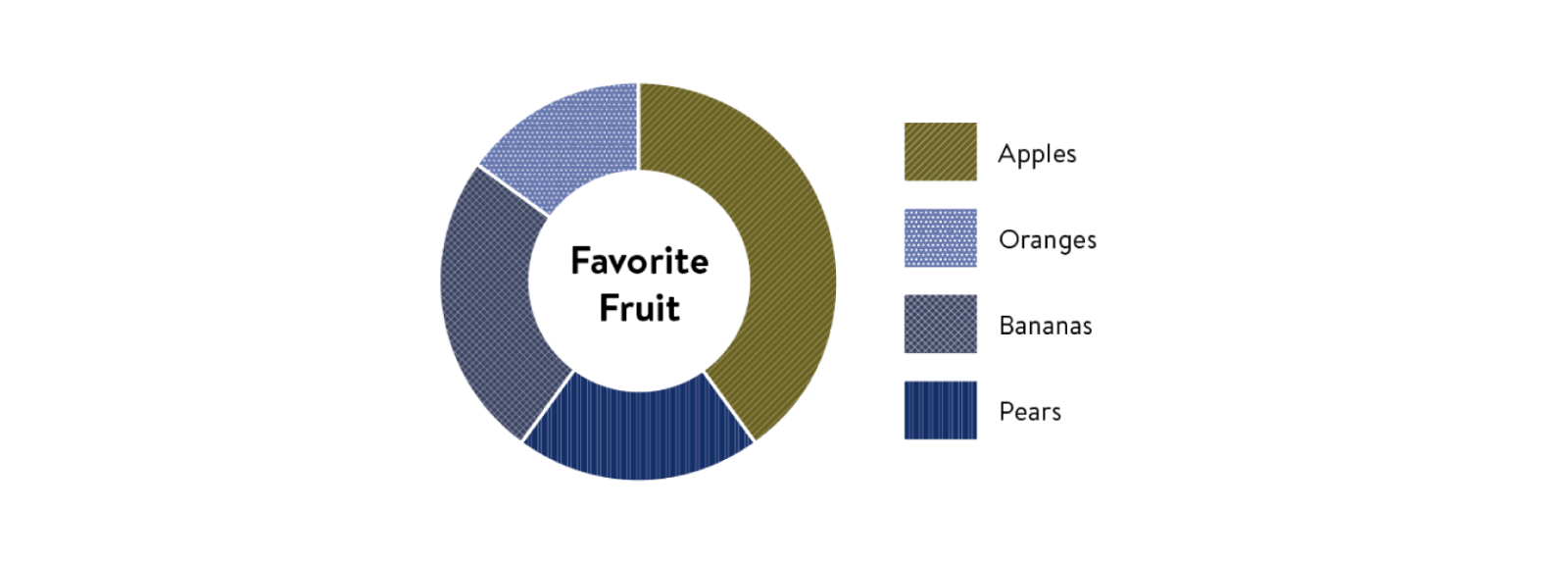
This image simulates how the “favorite fruit” graph may appear to someone with deuteranopia-type color blindness. It was generated using the color blindness simulator in Adobe Illustrator.
Graph with deuteranopia-type color blindness filter
Another simple method for simulating color-blindness is to convert the graph to grayscale. You can see how important the pattern fills are for this graph type. You can see how your image looks in grayscale by using an online colorblindness simulator, such as color-blindness.com. If you have access to Adobe Creative Cloud applications, you can view the image in grayscale by changing the color mode to grayscale.

Graph converted to grayscale
Browser testing
Browser DevTools – Accessibility Tree
- Chrome DevTools: Accessibility features reference
- Microsoft Edge: Accessibility Tab Overview
- Mozilla Firefox: Accessibility Inspector
- Mozilla Firefox: How assistive technologies interface with the Document Object Model (DOM)
- Knowbility: Accessibility Application Programming Interface (API)
WAVE extension
WebAIM offers the WAVE extension browser plug-in as one of many tools that automate accessibility testing. It helps business analysts and designers identify accessibility errors and confirm correctly implemented features.
The tool also helps developers by explaining errors and linking to detailed guidance on how to fix them. It presents this information in plain language, making it useful for non-developers as well.
ANDI
The Social Security Administration offers the ANDI bookmarklet testing tool to help identify accessibility issues. It automatically detects potential problems and provides practical suggestions for improving accessibility. The tool works with Chrome, Edge, Firefox, Internet Explorer, and Safari browsers.
More information about other browser extensions can be found on this list that is maintained by Digita11Y.
Software testing
Accessibility Insights for Windows
Helps developers find and fix accessibility issues in Windows apps
How to get it
- State employees: Search in your Software Center.
- General Public: Visit Accessibility Insights tool web page.
Screen Reader testing
Effective testing with screen readers and related tools requires some training. First, in how to use a screen reader, then in understanding what is expected behavior. There are several courses available online and through your local vocational rehabilitation organization to learn more about screen readers.
Simply running a screen reader without a good understanding of the tool, as well as distinguishing between accessibility testing (testing against the criteria) and usability testing (can users perform tasks as expected?) will result in poor or less useful data.
NVDA (Non-Visual Desktop Access)
Allows blind people and others with vision disabilities to access and interact with the Windows operating system and many third-party applications. Gives testers the ability to understand this user experience in their digital solutions.
JAWS Inspect
TGPi provides free and paid license versions. View JAWS Inspect’s report demonstrations.
Additional Resources
MNIT Office of Accessibility
- WCAG 2.1 Overview page
- State of Minnesota’s Digital Accessibility Policies & Standards
- Blog: Learn more about digital accessibility
- Blog article: Learn more about how Human Centered Design (HCD), User Experience, and Customer Experience intersect with accessibility
- Blog article: Learn more about website accessibility testing
- Accessible Word Training