Key messages
- Set size and position of the map element and UI components to maintain functionality at full zoom. Note: Mobile-friendly design helps meet this criterion.
- There is an exception for "parts of the content which require two-dimensional layout for usage or meaning." An example is maps.
- Note: It is unclear whether this exemption applies to all map content a user can view through panning and zooming, which often cannot fit within a single view, or to the map element itself and its accompanying user interface components.
- For this training, we assume the exemption applies to all map content the user could view. As a result, this training focuses on ensuring that maps and their accompanying UI components remain perceivable, operable, and understandable when users resize content through browser zoom. Designing with this expectation also helps make maps more mobile-friendly.
- The standard says functionality should be maintained at a zoom of 400% at 1280 horizontal and 400% at 1024 vertical. These dimensions will be referred to as "full zoom" throughout the training.
Maps
The map width should be dependent on the viewport width. The user should not have to scroll the page horizontally to see any part of the map element. Vertical scrolling is only appropriate if the map is part of vertically scrolling content. In this case, two-finger panning should be enabled. For full-page maps, the user should not have to scroll the page vertically to see any part of the map or access UI components. Containers of UI components and ancillary information may use vertical scrolling.
Buttons
If a map container is set to a percentage of the view height and/or width and widget buttons are stacked in a container along an edge, buttons may overlap at full zoom and become unusable.
The application needs to be responsive to both the screen’s width and the browser’s zoom. When buttons begin to overlap, move all buttons to a single "tools" button that expands a pane of tools that scroll vertically and flow horizontally. When a tool is clicked on, hide the tool pane, then activate an event or open the next pane.
Pop-ups and panes
Set sizing for pop-ups and panes that do not require horizontal scrolling and do not overflow horizontally off the viewport at full zoom.
Legends
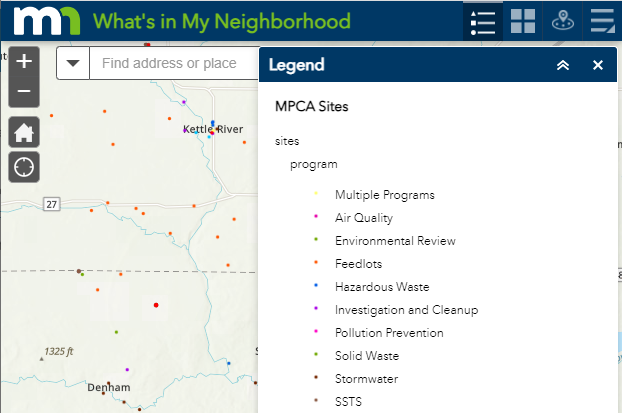
Many developers create and serve a static image for a legend. Avoid this and use images or SVGs for individual symbols on legend items and text for layer display names. ArcGIS Maps SDK for JS solutions include the Legend widget and the LayerList widget. If a static image for a legend must be used, ensure the image will fit the viewport width at full zoom (and make sure to use appropriate alt text).
Forms
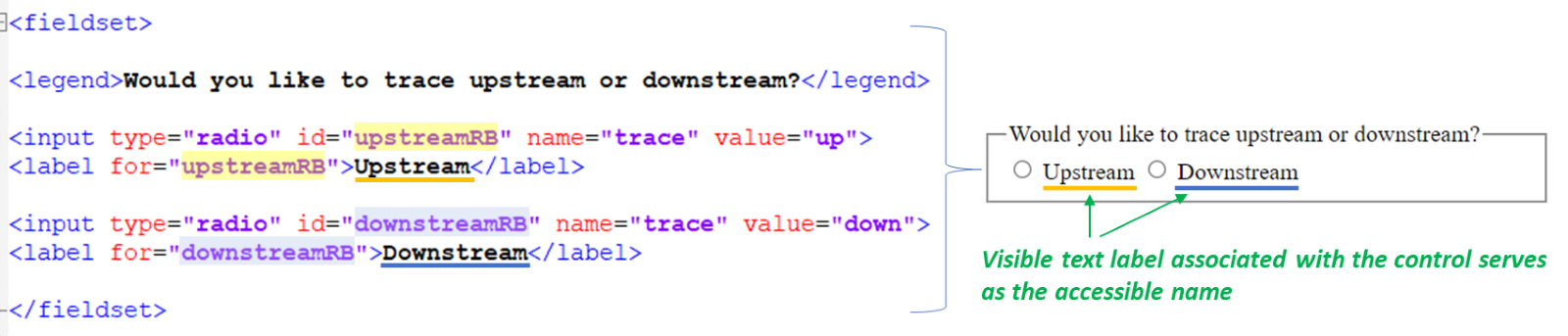
Forms often collect inputs in maps, such as search terms. In desktop views, position labels inline with inputs. On mobile views, position labels above inputs.

Tables
Tables are exempt from limits on two-dimensional scrolling. Tables that support activities such as data comparison often require a wide layout, with records spanning a full row that may exceed even large desktop viewports. When possible, apply scrolling to the table container rather than the entire page. You may also consider whether the table content can be reorganized into one or two columns when viewed at full zoom.
How to implement
Note: Many web resources support implementing responsive design, this list is not exhaustive.
How to test
- Any browser with developer tools that show or set screen dimensions.
- OS based commands for zooming content.
Resources