skip to content
Keyboard

News

Create QR Codes for Everyone

Guidance on making QR code usage inclusive and accessible.

7/17/2026 1:19:24 PM
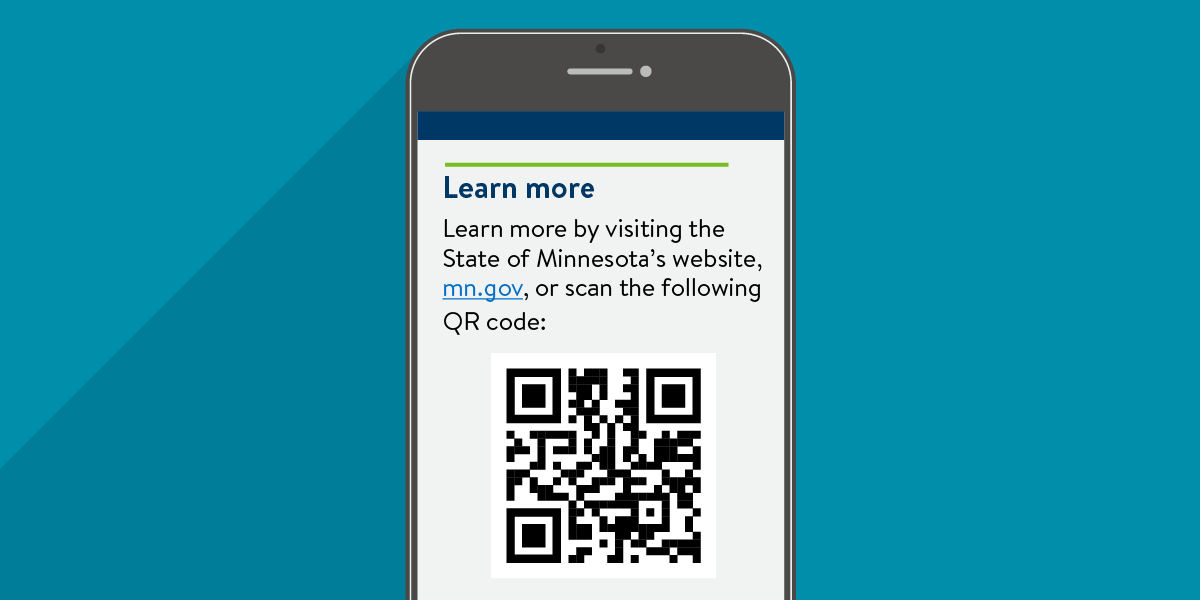
Illustration of a smartphone showing a QR code with additional text below it that says

Quick Response (QR) codes are everywhere. You’ll find them on flyers, restaurant tables, websites, and social media. They’re meant to be quick and convenient. But if not designed carefully and thoughtfully, QR codes can create barriers—especially for people with disabilities. This article shares simple steps you can take to make QR codes —and the information they lead to— more accessible. 

We are assuming you have a means to create QR codes safely and can track their usage in the backend. Let’s focus on how to make them work for more people.

Provide an alternative method

The most important thing you can do is give users another way to visit a link or complete the same task. A QR code should never be the only option.

Consider users who are blind, have low vision or color blindness, have motor challenges, have cognitive disabilities, or don’t have a device that supports QR codes. For many people, trying to align the code with their camera, wait for and see a pop-up link, and then touch it to open a new app or browser can be frustrating—or impossible.

Here are some alternative options to consider:
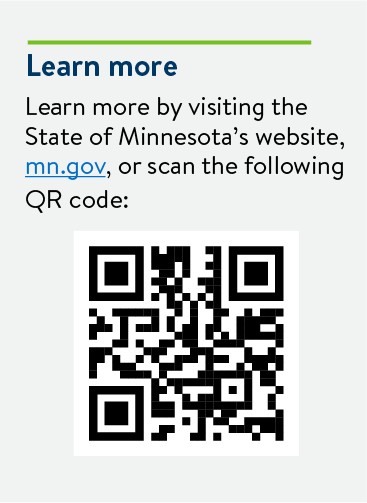
  • In digital content: Add helpful alternative text to the QR code that identifies the destination. For example: Learn more by visiting the State of Minnesota’s website, mn.gov, or scan the following QR code. Or, make the image decorative and place instructions with a meaningful link next to it. This helps screen readers give users clear information—without repeating it. Example from the State of Minnesota:
    Illustration of a QR code with additional text below it that says "Learn more" and provides the actual URL the QR code is linked to as an alternative.
  • In printed materials: Write out the full URL near the QR code so people can type it, if needed.

Design tips to make QR Codes easier to use

Once you’ve given users another option, take these extra steps to make the QR code itself more accessible:

  • Use high contrast colors. QR codes are images, and they need to meet color contrast standards. Good contrast makes them easier to see and helps scanners read them more reliably. Contrast tools like WebAIM Color Contrast Checker, Level Access Color Contrast Checker, or Colour Contrast Analyser (CCA) provide a way to check for contrast that meet the standards.
  • Avoid automatic actions. Some QR codes launch apps or perform actions immediately. That can confuse or frustrate users. Instead, link to a web page with clear instructions or a call-to-action. 
  • Support voice commands. Some users activate QR codes using voice controls instead of touch. Since QR codes are inherently visual and rely on a camera-based scanning process, enabling voice-activated interactions requires designing the surrounding user interface, system, and environment to recognize and respond to voice input effectively. 
  • Consider tactile buttons, if appropriate. This allows users another option to activate a QR code. Example: If your material is physical and interactive (like a kiosk), tactile buttons can give users another way to activate the QR code.

Final takeaway

When you take time to design QR codes with accessibility in mind, you make your information easier for everyone to access—not just people with disabilities. A few simple changes can create a better experience for all users.

Article Sources

Subscribe to our Newsletter

Would you like to learn more about the accessibility work being done by Minnesota IT Services and the State of Minnesota? Once a month we will bring you more tips, articles, and ways to learn more about digital accessibility.

Subscribe Today

Accessibility

Accessibility

back to top