Find the latest news from the Office of Accessibility. Once a month we will bring you tips, articles, and ways to learn more about digital accessibility. Want an easier way to stay informed? Subscribe to the Accessibility Newsletter!
Learn practical steps to make your ArcGIS Experience Builder web maps accessible and inclusive.
2/17/2026 10:44:40 AM

Content author: Jason Ewert, GIS Application Analyst, MNIT Partnering with MPCA
Accessible web maps make government data easier to explore and helping people understand what’s happening in their communities. The ArcGIS Experience Builder (ExB) offers a no-code solution for building web maps on the ArcGIS Online platform. While it makes building web applications easier, accessibility still requires intentional design and testing. This article explains simple steps you can take to make your Experience Builder maps user-friendly and inclusive, so all visitors can navigate and understand your content.
Gutenberg, the WordPress block editor, heavily influences Experience Builder. Block editors construct websites using draggable blocks containing headings, text, and media. Experience Builder follows this model and adds special data visualization blocks including charts and maps. How users stack, label, and configure these blocks directly affects the map’s accessibility.
"ArcGIS Experience Builder is a highly configurable solution for building compelling web apps without writing code." - Esri
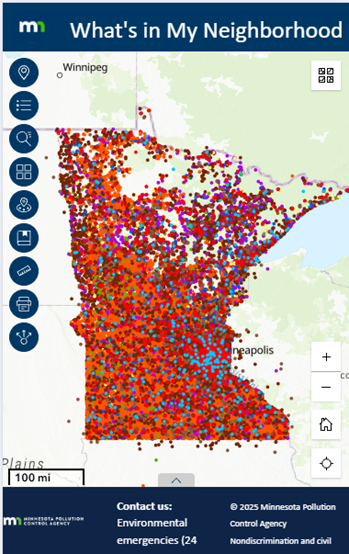
When building web map applications, it’s important to:
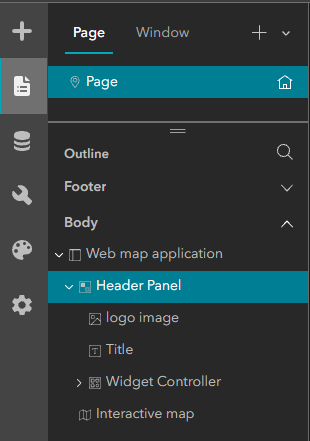
Accessibility starts with a well-organized outline. Your website should start with a header block, followed by the main content block, and finally, a footer block. Within these primary blocks, add content blocks such as a logo, a title, a widget container (a special block containing map tools like print and query), and one or more maps.
In the ExB editor, review the page outline and relabel each block with a clear, concise title. Ensure the outline reflects a logical, easy-to-follow flow. To test the flow of your site’s content, open a preview window and tab through the site. Watch the focus ring move between elements. It should move through your blocks in a logical order from top to bottom without getting stuck in a tab trap.
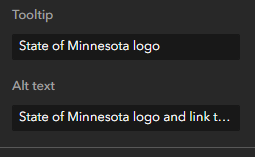
When configuring blocks, fill out the tooltips and alt text where available using short, descriptive content. The titles created in the page outline will become labels and tooltips in your site. To view the tooltips, hover over the site’s buttons. Screen readers and voice commands rely on the descriptive labels you create in the page outline.
A web application can take the user on many journeys. It’s important to start with an introduction to the site’s purpose followed by a description of the primary workflow. This introductory text should also contain contact information, providing a useful alternative path for accessing information or completing a task.
Creators can accomplish this using:
Maps present visual information and often hide key details behind interactive clicks. To ensure access for all users, include a data table that provides an alternative way to access the same information.
When adding a table, make sure the first row contains clear, meaningful column headings. Keep the table simple and focused on relevant information. Include only essential columns—such as city name and population—and hide technical fields like FIPS codes that do not add value for most users
Accessible web mapping is still evolving. Clearly organizing your Experience Builder application improves communication for all users. Start with an introduction that orients users to your unique web experience. Provide data in both map and table formats so people can choose how they access information.
Happy mapping!
Accessibility
Accessibility
