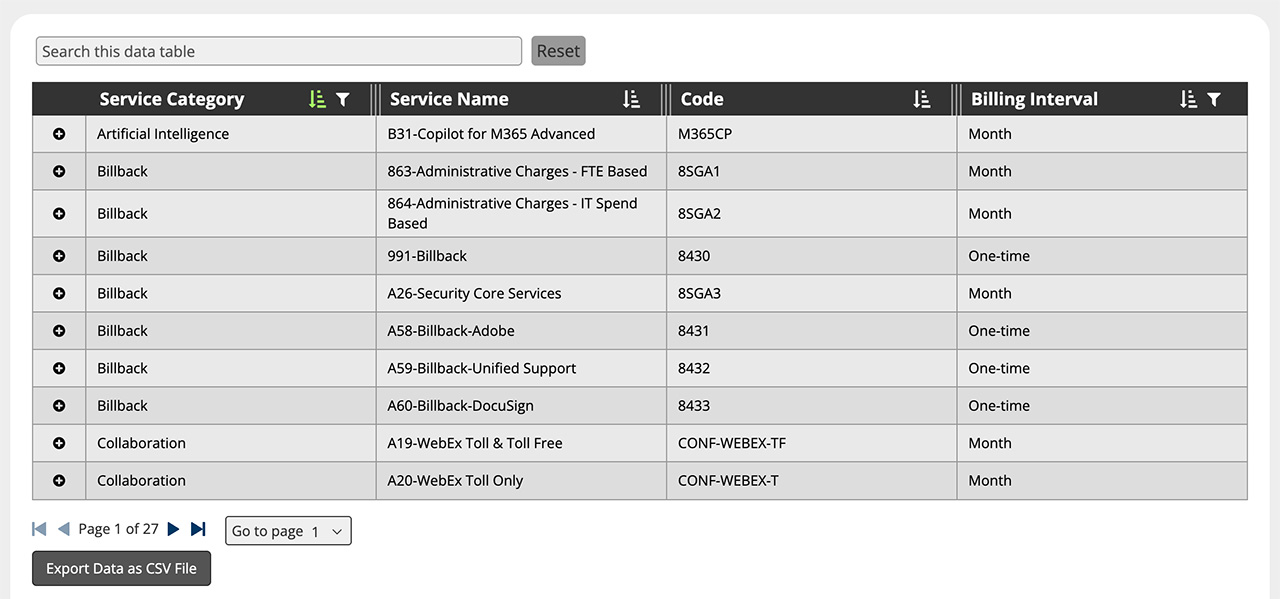
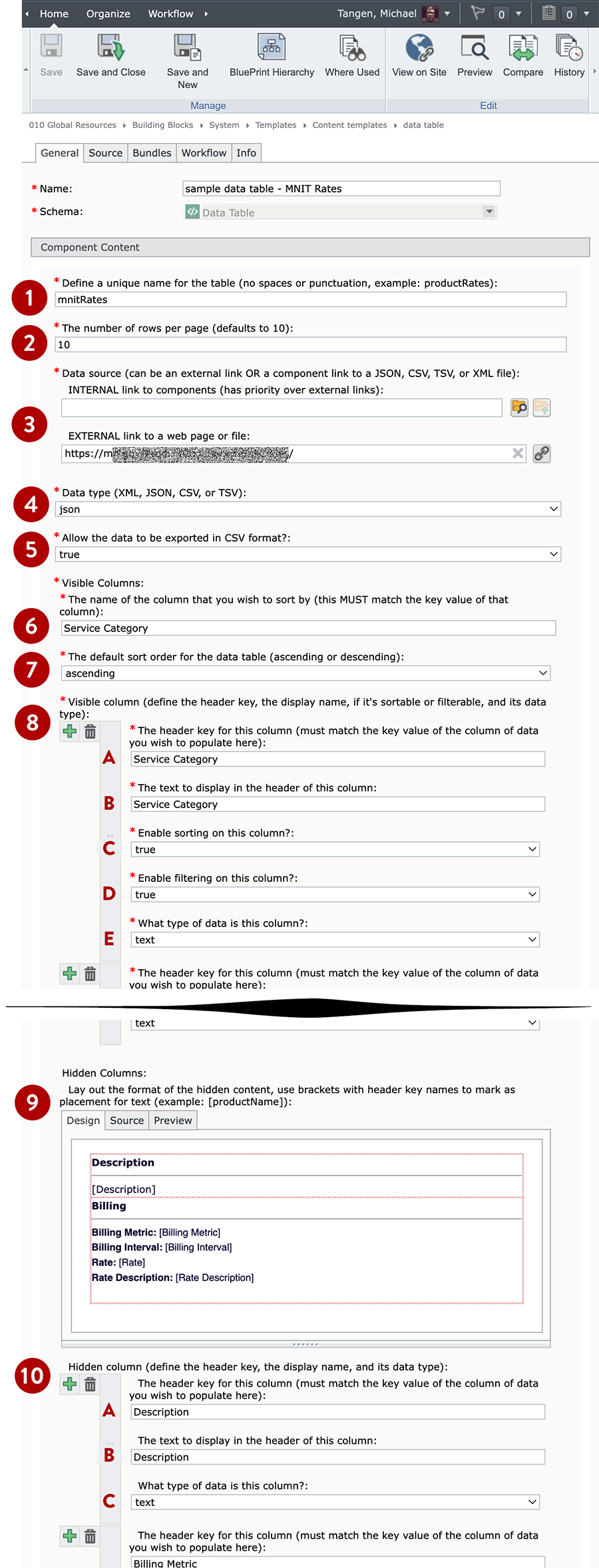
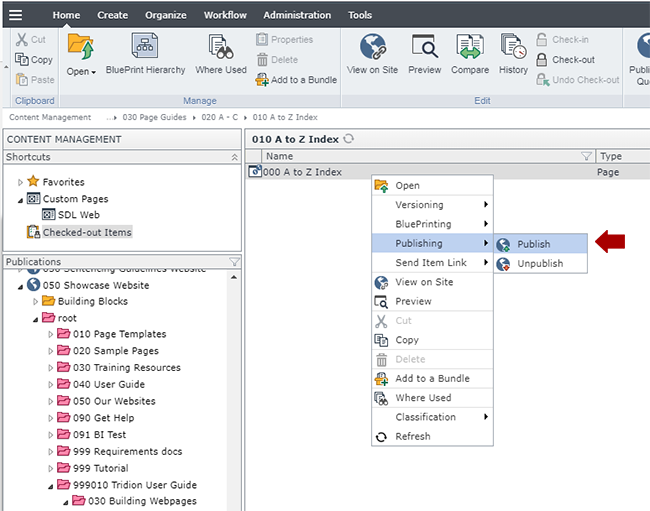
Prepare and upload the Data Table source file
If you are not linking to an external data source, your Data Table will require a separate source data file, that contains your raw data. This step will walk you through the process of creating, preparing, and uploading your source file into Tridion.
Instructions for preparing your source file
The source file can be formatted as tab delimited (.txt), comma separated values (.csv), JSON, or XML, and either be an external data source or a component link within Tridion to a component data.
These instructions focus on generating CSV and TSV files for use in Tridion. If you want to build a Data Table using JSON or XML and need help doing so, please submit a support ticket and we will assist you.
CSV files
The easiest way to create a CSV file is in Microsoft Excel. Here are the steps for doing so.
- Generate a spreadsheet that contains the data you wish to display in your Data Table, with data separated into columns.
- You must have a header row. Provide a unique name for each column of data in the header row.
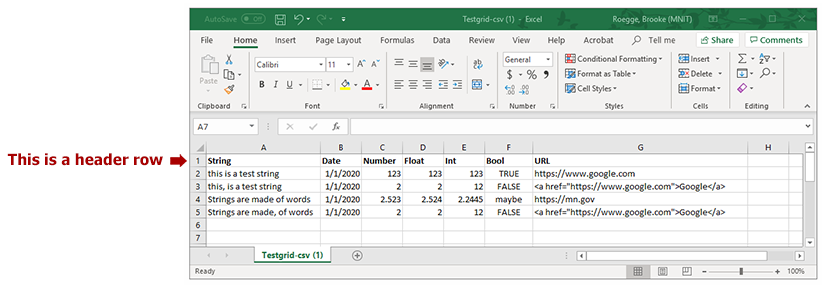
- If your data contains line breaks within a single cell, you will need to insert HTML break tags where the line should be. For example, an address in a spreadsheet should be formatted like this:

The reason for this approach is because line breaks in Excel are not rendered as line breaks or carriage returns in the Data Table. Additionally, if your column is not contained within quotation marks and contains a line break, that line break will be interpreted as the start of a new row of data, and therefore will cause the Data Table to render incorrectly or altogether break.
- Using Excel's Save As feature, save your file in a comma-separated value (.csv) format.
TSV files
TSV files is one alternative to .csv files and doesn't necessarily present any additional benefits over CSV data files, and they can be relatively difficult to maintain. But one advantage is that you do not need a spreadsheet application to maintain your data, and can be modified or maintained using Microsoft Notepad. Here are the steps for doing so:
- Create a file in Microsoft Notepad. Type in the data, and hit the "Tab" button between each piece of data that should be in a new column. Hit Enter to start a new row of data.
(You can also create the file in Excel and save it as a tab-delimited file, but doing so will put quote marks around any data that contains commas. To remove those quotes, you will have to save the file as tab delimited in Excel, open the file in Notepad, and remove all the quote marks from your file.)
- Save the file as a .txt file.
Including URLs in your data
If you would like to include hyperlinks in your data, we've introduced the ability to include hyperlinks using Markdown syntax (no HTML knowledge required!). If you would like a column of hyperlinks, ensure that your hyperlink column is in the following format:
[Link Label](https://mn.gov/)
Regular HTML links using <a> tags work too.
Uploading the file
Regardless of which source file type you selected, the process for uploading your file is the same. Please do the following:
- In the 020 section, navigate to the folder where the components for the Data Table page will reside.
- Create a new multimedia component and complete the following fields:
- Name: enter a name for the file here
- Schema: select CSV or TSV data file (you may receive a pop-up asking you to reload the schema for the page, please click OK to proceed)
- Click the Load from Disk button
- Navigate to where your source file is saved and select it
- After the file has completed uploading, Save and Close the component