

Data Table Component
Create This Page Sample Page The Data Table is the official replacement for the third-party DataGrid content type, offering improved usability and accessibility while remaining feature-rich. The main component used to generate the Data Table pages is a configuration component that defines various properties of the Data Table page and the various fields of data that you will be displaying within both visible and toggled hidden views. The Data Table accepts the following data types: XML, CSV, TSV, and JSON. The CSV and TSV source data must have a header row that defines the unique column name for that column of data. XML and JSON data sources must be properly formatted XML and JSON, and must have valid node names or key/value pairs.
-
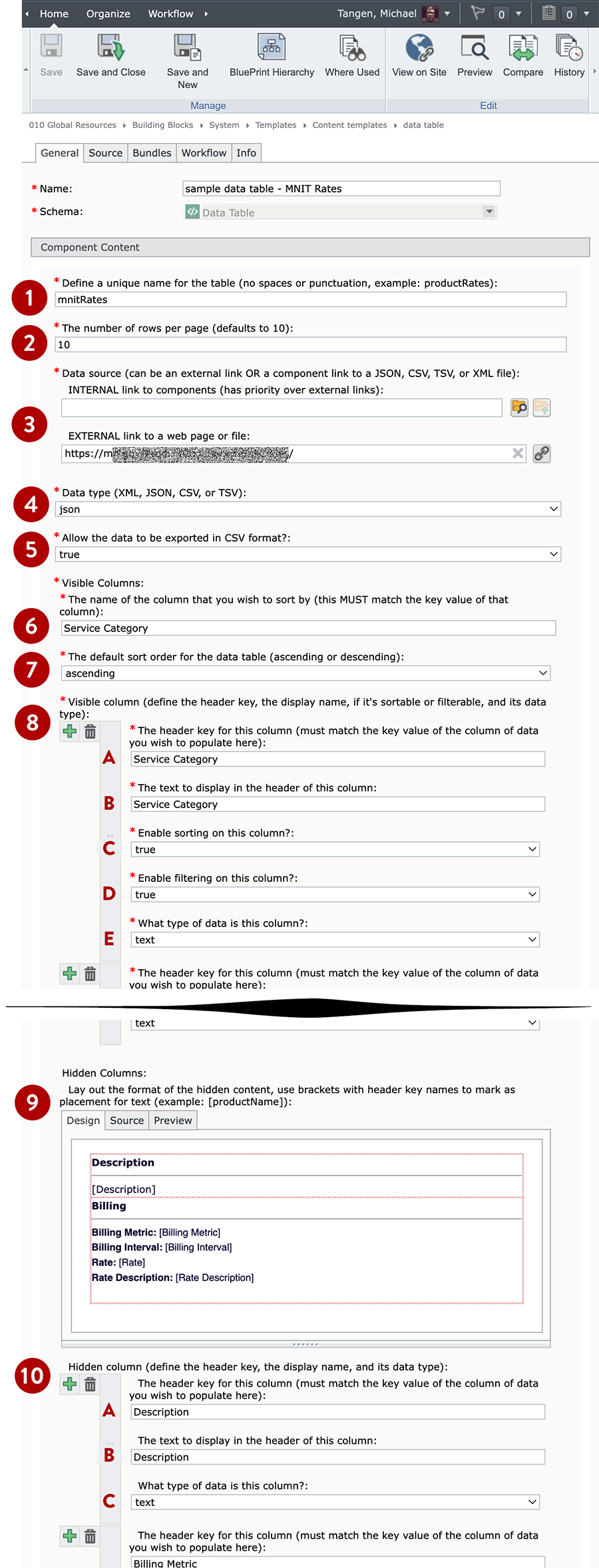
Configuring a Data Table is complex and requires attention to detail and an intimate familiarity with your data source. Please pay very close attention to the instructions, and in doing so you'll increase the likelihood that your data table will work without issue. It is imperative that your data is formatted correctly or it will not work properly, or likely at all. If you experience issues getting your data table to work, it is more than likely an issue with your data or your configuration. The numbered list below corresponds to the adjacent graphical depiction of a sample data table component.
- Define a unique name for the table. Please provide a unique name for your data table. No spaces or punctuation marks are allowed; the name is case-sensitive. An example valid name: ratesTable. This allows you to provide unique identifiers for the Data Table, which translates into allowing you to more deeply customize the appearance of your Data Tables with CSS overrides.
- The number of rows per page. Defaulting to 10, this is a numeric field that allows you to define the number of rows per pagination view in the table. Note: for usability reasons we do not permit viewing the entirety of the table.
- Data Source: The data source MUST be one of these four formats: JSON, XML, CSV, or TSV. You must provide either a link to an external data source (example: https://mn.gov/data-sources/feed/rates-table.json) or a Default Multimedia Component in Tridion in one of the four approved formats. If you are providing a CSV or TSV data source, its first row must be a header row containing the names of each column of data. If your data is in XML or JSON format, it must have unique node names or key/value pairs for each column of data you wish to display. All data sources must use valid markup. If you are unsure if your data is valid, consider using an online validator to proof your data's format.
- Data type: As indicated in #3, it can only be one of four data types: JSON, XML, CSV, or TSV. In this field, select which data type you are linking up to.
- Allow export as CSV: One optional feature of the Data Table is to allow the current view to be exported as a CSV file. By enabling this feature (setting it to "true"), you can allow the end-user to export the current data view as a CSV file, including filtered and search-refined views. Default setting: false.
- Visible column sorting: Enter the column name that you wish for the visible columns to be sorted by (case-sensitive). In CSV and TSV data, this must match a name in the header row. In XML it must match a node name. In JSON, it must match the named key in a key-value pair. If it does not match exactly, it will default to sorting the first column but the filtering icon for that column will not highlight.
- Visible column sort order: This is the sorting direction for all sorting initial view, defaults to "ascending".
- Visible columns: this is a repeatable field, allowing you to define which columns you wish to appear in the visibly displayed columns in the Data Table. Depending upon the column data types and the average length of the data in those columns, we recommend no more than 4 or 5 columns. Use your discretion. Mobile users will be prompted to turn their device to landscape mode for better data viewing.
- Header Key: Enter the column name that you wish to display in this column. It is case-sensitive. In CSV and TSV data, this must match a name in the header row. In XML it must match a node name. In JSON, it must match the named key in a key-value pair. If it does not match exactly, this column will not render any data.
- Display text: You have the option to display a different set of text in the column header row, different from the name as it appears in your source data. For example, if your source data's header column name is "Service Category", in this field you could opt to label it something else, such as "Service Name".
- Enable sorting: This allows you to set whether or not this column is sortable.
- Enable filtering: This allows you to set whether or not filtering is available for this column. Only use this if there is frequently-repeated data, such as a category or a type name.
- Data type: This allows you to set the data type for this column, with some types allowing special formatting options. Options for data types is: text, number, currency, currency-decimal, date, link, and percent.
Tip: If your source data contains any links in a column, select "link" for this field, rather than "text."
- Header Key: Enter the column name that you wish to display in this column. It is case-sensitive. In CSV and TSV data, this must match a name in the header row. In XML it must match a node name. In JSON, it must match the named key in a key-value pair. If it does not match exactly, this column will not render any data.
- Hidden (toggled) content layout: This configuration option provides a basic rich text field, allowing you to create a layout for your toggled hidden data. You can use basic Bootstrap column layout markup (e.g. <div class="col-sm-6"></div>) or alternatively a table layout. You can dictate where data displays by enclosing the field name in [brackets]. For example: if your layout included this in your markup: Service Category: [Service Category], it would render something like this in the Data Table if the value of the row were "Web Applications": Service Category: Web Applications
- Hidden Columns: These are the columns of data that you wish to display in the toggled region of your Data Table. Leaving these blank will leave out the toggle functionality altogether. Note: You MUST set up a layout for your hidden toggle content, even if it's just a basic list or lines of content.
- Header key: As with the visible columns, this is the case-sensitive name matching the header key for the column of data you wish to display here
- Data type: This is the same set of options for the visible columns. Select the appropriate data type that matches your source data for this column.
- Header key: As with the visible columns, this is the case-sensitive name matching the header key for the column of data you wish to display here
- Define a unique name for the table. Please provide a unique name for your data table. No spaces or punctuation marks are allowed; the name is case-sensitive. An example valid name: ratesTable. This allows you to provide unique identifiers for the Data Table, which translates into allowing you to more deeply customize the appearance of your Data Tables with CSS overrides.
-
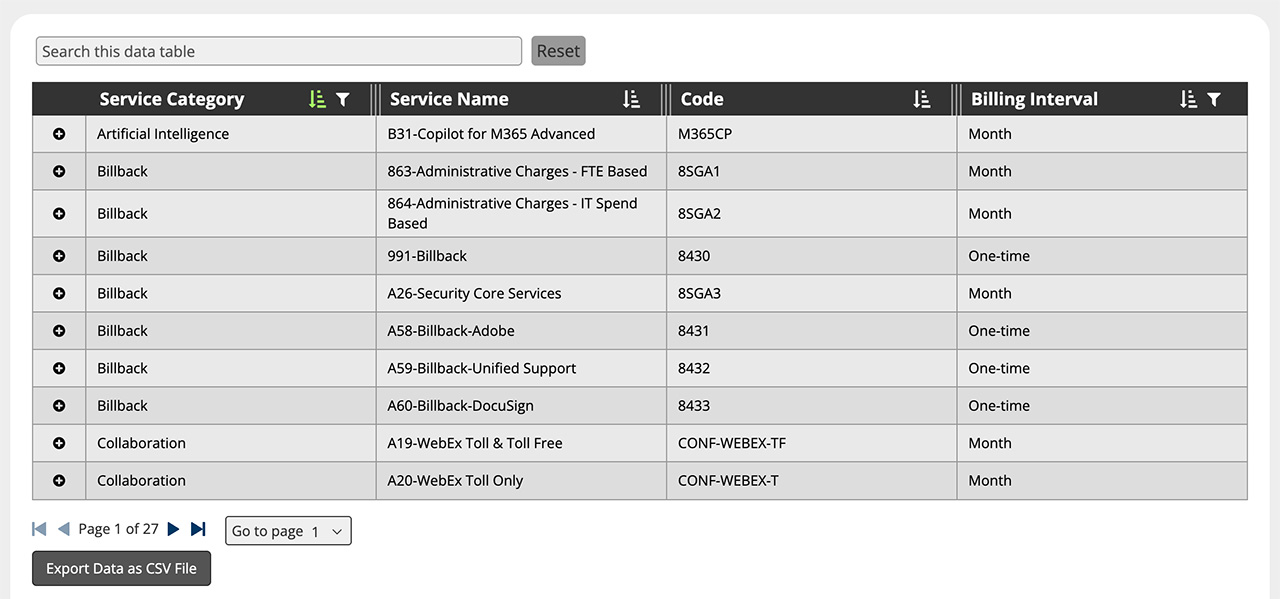
The Data Table is a feature-rich table presentation that allows one to search through the data, filter by column category data, sorting, quick pagination to find the data you're looking for, and the option to export the current data view as a .CSV file. The data table also has the ability to allow the end user to resize the columns to their liking, and persists while on the page. It also allows for a toggled hidden set of data, able to present more data sets in a customized manner.
Custom filtering
For columns that have repeating data, such as categories or commonly shared attributes, you can enable filtering on those columns, allowing users to narrow down the data view by category or type. In the filtering view you have the option to individually click and un-click attributes, as well as check all and uncheck all. If you have more than one column that is filterable, you can even toggle the display of each filter group and set up custom filters within each filtering group.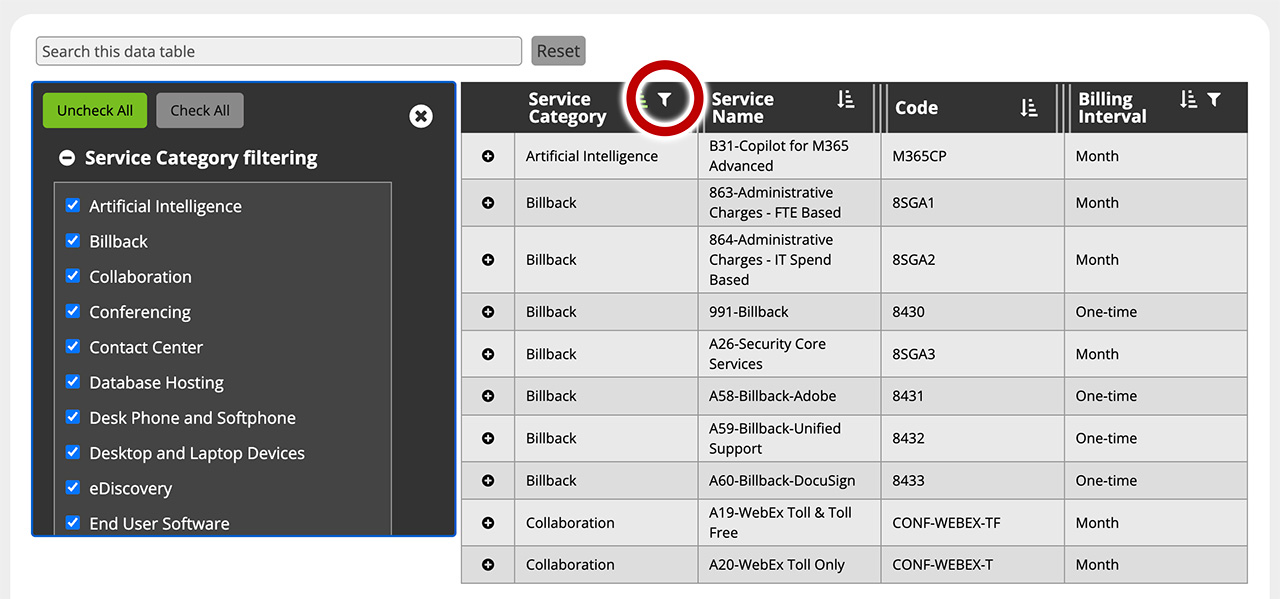
Search filtering
You can filter out all data that doesn't match your search criteria — simply begin typing and the table search looks for matches to what you're typing, as you're typing. The search filtering also searches toggled hidden content.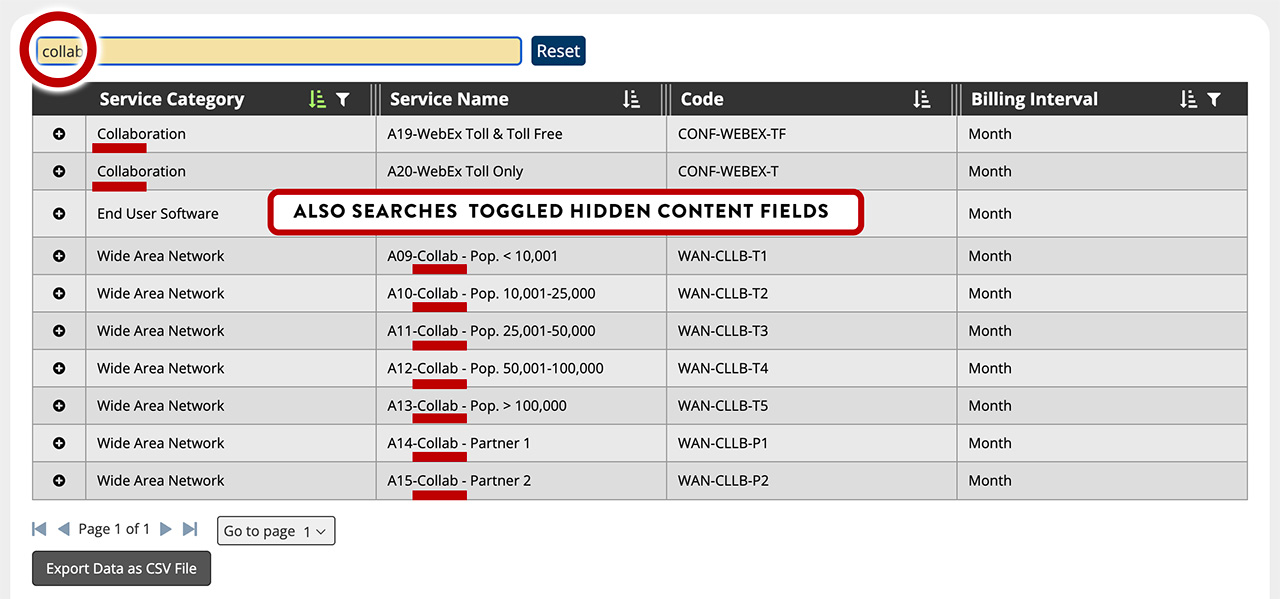
Customizable toggled view of additional data
If your data table has a larger quantity of fields than is practical to display in the default view, you can provide a toggled view of additional data. With the configuration component, you're able to customize the toggled data with the provided rich text editor. You can present that additional data as a simple list, as an embedded table, or if you're HTML savvy, you can use HTML to create your layout in the source view (basic Bootstrap column classes supported — example: <div class="col-sm-6"></div>). To create placeholders for your various data fields, place the column's unique header name (key, node name, etc) in brackets like this: [Billing Metric]. It is case-sensitive and must match your column header keys in your data source.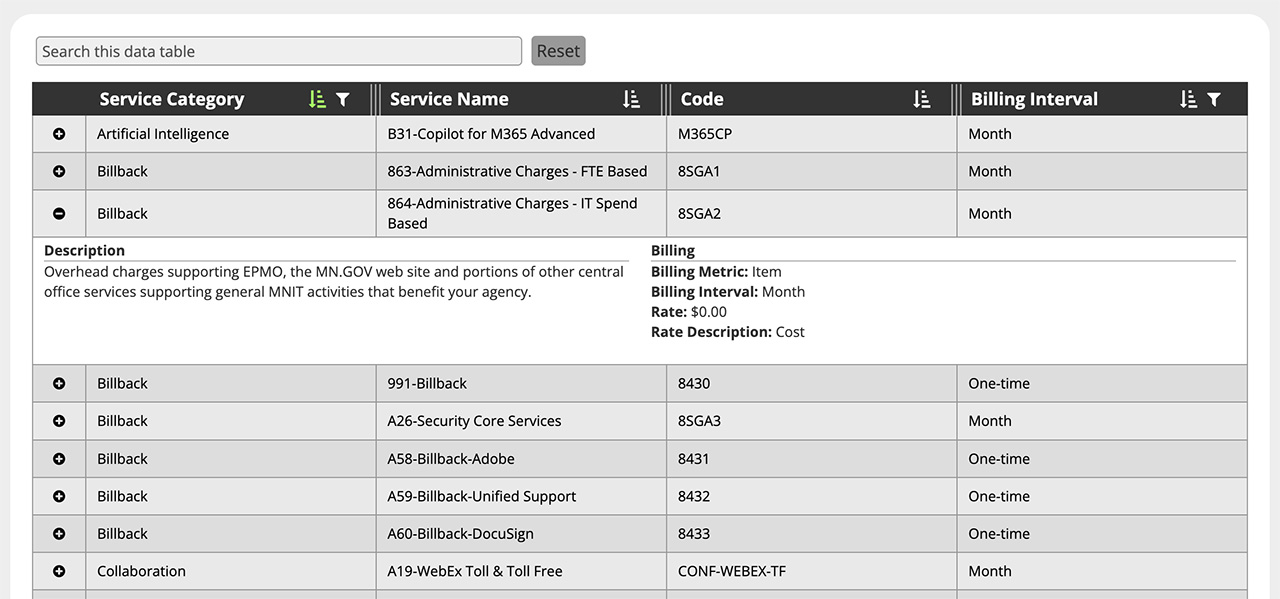
-
The Data Table has some additional notable features — some of which are visible, some under the hood.
- The Data Table is WCAG 2.1 AA compliant and takes advantage of ARIA tagging to provide additional assistance for non-sighted users, providing polite notifications when changes occur in the data table as well as various state updates when navigating through page views or sorting the table.
- The Data Table uses all native table tagging for optimal accessibility and is fully keyboard-navigable, allowing users with assistive technology to fully navigate through the data table with their keyboard or assistive device.
- Columns are resizable both with your mouse and your keyboard and those column sizes are retained while still on the page. To resize a column with your keyboard, you simply tab into the resizing control in the table header, and adjust with your right and left arrow keys.
- The Data Table also allows the option to provide the end user with the ability to export their current view of the data in CSV format. A user can filter down their preferred view of the data and then export that view for their use.
We have plans to add additional enhancements in the future, including configurable date sorting, the ability to create your own JSON-based dynamic document lists, and other ways of enhancing the user's experience with the Data Table.
- The Data Table is WCAG 2.1 AA compliant and takes advantage of ARIA tagging to provide additional assistance for non-sighted users, providing polite notifications when changes occur in the data table as well as various state updates when navigating through page views or sorting the table.
-
As was mentioned a few times in this documentation, the only accepted source data types are XML, JSON, CSV, and TSV. We've provided some additional information below to help you understand these data types better and how to work with them. If your Data Table isn't working properly, it's more than likely an issue with your source data or how you set up your configuration.
XML
Extensible Markup Language (XML) is a markup language and file format for storing, transmitting, and reconstructing data. For the purposes of the Data Table, your data must be valid XML, and your node names uniform across each column of data you wish to display. Here is a very small sample of XML data, displaying two nodes of data.
<?xml version="1.0" encoding="UTF-8" ?> <Services> <Service> <Service_Category>Application</Service_Category> <Service_Name>860-SaaS App Dev & Support - Licensing</Service_Name> <Code>8SAAS1</Code> <Description>License costs for agency administrative staff using the agency's custom SalesForce solution.</Description> <Billing_Metric>Item</Billing_Metric> <Billing_Interval>One-time</Billing_Interval> <Rate>0</Rate> <Rate_Description>Cost</Rate_Description> </Service> <Service> <Service_Category>Audio Conferencing</Service_Category> <Service_Name>080-Reservationless Toll Free</Service_Name> <Code>IC-R8</Code> <Description>Charges for phone conference call Service that is available on-demand, and participants call a toll-free number.</Description> <Billing_Metric>Minute</Billing_Metric> <Billing_Interval>Month</Billing_Interval> <Rate>0.0358</Rate> <Rate_Description>Fixed</Rate_Description> </Service></Services>In this example, "Service_Category" is the node name that represents all of the categories of services in our data. You can see that under "Service_Category" there are two different categories of services represented: Application and Audio Conferencing. In your Data Table configuration, you would use "Service_Category" as the Header Key for either your visible or hidden toggled columns of content. It's important to note that these node names must be unique within each repeating group of nodes. If for example I had two nodes within <Service> named <Service_Category>, this would likely break the Data Table. Please ensure that each node that you plan on configuring into the Data Table is unique for each block of XML data.
It should be understood that when using an XML data source, it must follow all of the typical rules of XML, such as properly nested tags, matching opening and closing node tags, and other such conventions unique to XML.
JSON
JavaScript Object Notation (JSON) is an open standard file format and data interchange format that uses human-readable text to store and transmit data objects consisting of key-value pairs. Like XML, it is expected that your JSON data must be valid, have uniform key names across each repeating node of data, and be a unique name within each node. Here is a sample of JSON data:
[
    {
            "Service Category": "Application",
            "Service Name": "860-SaaS App Dev & Support - Licensing",
            "Code": "8SAAS1",
            "Description": "License costs for agency administrative staff using the agency's custom SalesForce solution.",
            "Billing Metric": "Item",
            "Billing Interval": "One-time",
            "Rate": "0",
            "Rate Description": "Cost"

    },
    {
            "Service Category": "Audio Conferencing",
            "Service Name": "080-Reservationless Toll Free",
            "Code": "IC-R8",
            "Description": "Charges for phone conference call service that is available on-demand, and participants call a toll-free number.",
            "Billing Metric": "Minute",
            "Billing Interval": "Month",
            "Rate": "0.0358",
            "Rate Description": "Fixed"
    }
]
Your JSON data source must follow all the expected rules of JSON (in fact, we advise running your data through a JSON lint service to validate your data's format) and unique to usage in the Data Table, your key names must be unique to prevent the Data Table from choking on your data. In the above example, you'll note that "Service Category" is unique in each node (there is no other "Service Category" within each node.
Generally speaking we advise you to encapsulate your key-value pairs in quotes ("Service Category": "Audio Conferencing"), but in the case of numbers, it is acceptable to present those values without quotation marks. However, all keys must be contained within quotation marks. Any quotation marks occurring within a value must be escaped with a backslash (\).
Example:
"Description": "Your up-time is \"technically\" not 24x7"To define a Header Key within the Data Table, you would simply type out the matching key name within your data. Using our example above, any of the following are valid Header Key names: Service Category, Service Name, Code, Description, Billing Metric, Billing Interval, Rate, Rate Description.
CSV & TSV
Comma-separated values (CSV) and Tab-separated values (TSV) are plain text data formats for storing tabular data where the fields (values) of a record are separated by a comma (CSV) or a tab (TSV) and each record is a line. For the sake of presenting a CSV or TSV file, your file must also include a header row containing the unique names for each of your columns of data. Below is a sample CSV file:
Service Category,Service Name,Code,Description,Billing Metric,Billing Interval,Rate,Rate Description
Application,860-SaaS App Dev & Support - Licensing,8SAAS1,License costs for agency administrative staff using the agency's custom SalesForce solution.,Item,One-time,0,Cost
Audio Conferencing,080-Reservationless Toll Free,IC-R8,"Charges for phone conference call service that is available on-demand, and participants call a toll-free number.",Minute,Month,0.0358,Fixed
There is something important that you should note about working with CSV data. Because it is comma-separated, if your data has commas within a cell or column of data, that column or cell must be encapsulated in quotations. If you look at the example above, the first row of data (beginning with "Application") has no quotation marks encapsulating any of the fields; however the second line of data (beginning with "Audio Conferencing" has a column that is contained within quotations: "Charges for phone conference call service that is available on-demand, and participants call a toll-free number."
Remember that Header Keys within the Data Table are case-sensitive. Using the example above, to include Service Category data into a visible column of data, the header key name must match "Service Category". Typing "service category" would result in a failure to display that data in that column.
-
The table below shows each of the accepted content types for both visible and hidden/toggle columns of data, including the name, expected input format, and how it will output.
Column Data Types Column Data Type Expected Input Format Outputted Format Text Alpha-numeric characters with limited use special characters Text Number Whole numbers and decimals (example: 6.62607015) 6.62607015 Currency Whole or decimal number with no currency symbol (example: 1.69) $1.69 Currency Decimal Whole or decimal number with no currency symbol (example: 1.6942) $1.6942 Date The uniform, machine-readable date/time format.
Dates: YYYY-MM-DD
Time: HH:MM:SS (24-hour format)
Date & Time: YYYY-MM-DDTHH:MM:SS2026-02-07
13:00:00
2026-02-07T13:00:00Link Links should be encoded in Markdown format:
[The Display Text](https://mn.gov/)The Display Text Percent Enter as a decimal value: .425 42.5%
* We have plans of providing you date/time formatting options in the future, but for now will output as is. While technically you can input your dates like this: "February 7, 2026", we encourage you to use the aforementioned machine-readable format (2026-02-07) so that we can convert it uniformly to the format that you desire.