

Introducing the Minnesota Metadata Editor
What is the Minnesota Metadata Editor?
The Minnesota Metadata Editor (MME) is a desktop application that is intended to simplify and expedite the process of developing geospatial metadata. The program operates as a standalone application that edits metadata XML files. MME allows users to create, edit and display metadata that adheres to the Minnesota Geographic Metadata Guildelines (MGMG version 1.2), an implementation of the Federal Geographic Data Committee's (FGDC's) Content Standard for Digital Geospatial Metadata (CSDGM). The MME is a customized version of the EPA Metadata Editor (EME) 3.1.1.Field Definitions
- Tab 1: Basic Data Set Information
- Tab 2: Quality, Coordinate System, and Attribute Information
- Tab 3: Distribution and Metadata Information
Getting Started
-
Initial Steps
Back to topMME runs as a portable application and needs no installation. Rather than making a copy of the template application database for each user, it uses just one copy of the application's database for everyone who runs it. Nothing is added or modified on the machine running the program. All files are kept in the folder containing the application. If the application is stored on the local computer or a USB drive, you can launch Access to edit the application database using Tools > Open Database. Installing the application to a network drive can cause problems at certain installations so we don't recommend it. Further, you cannot use Access to directly edit a database on a networked drive due to security issues.
It can be helpful to take preliminary steps to customize key settings to meet your needs. Here's an overview of these steps:
- Go to the editor's location and double-click Minnesota Metadata Editor.exe to run it.
- If the application finds a \portable folder in its directory, it uses \portable\metadata.mdb as its source database. This database can be shared among several users if needed.
- If no \portable folder is found, the application makes a copy of the \template\metadata.mdb into the user's local directory that can be personalized for the individual user.
Setting Up the MME Database
When you first set up MME as a shared portable application, it can be helpful to edit the MME Database to ensure that the defaults for the metadata fields match your specifications. Please see the help section titled 'Customizing the Metadata Editor Database' for more information on configuring the database with default values to meet your needs.
-
Interface Features
The Minnesota Metadata Editor allows users to specify information that corresponds to all Minnesota required elements in Sections 1, 2, 4, 6, and 7 of the FGDC CSDGM. Additionally, the user interface allows you to specify some detail information for Section 5 (Attributes) of the FGDC CSDGM. User interface features are described in more detail below.Back to top
Global Features
These features can be accessed from the Tools and Edit menus.
- 'Open Database'
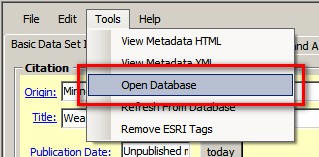
This feature allows users to open and edit the Minnesota Metadata Editor Microsoft Access database (metadata.mdb). The use of this feature requires that the user have Microsoft Access installed locally. - 'Refresh From Database'
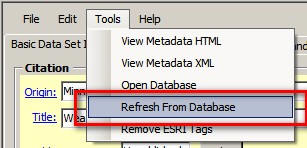
This feature is used to refresh the MME user interface defaults after edits have been made to the database. If the MME database is opened and edited from the MME user interface button, the 'Refresh From Database' option should be clicked to make sure that the defaults shown in the user interface reflect the newest edits to the database. - 'Spell Check'
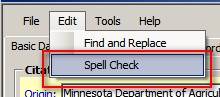
This feature will launch a spell-checking utility to verify the spelling of information within the current tab. If spelling errors are found within the selected tab, a new window will open and allow the user to modify the unknown word(s) if needed. - 'View Metadata as HTML'
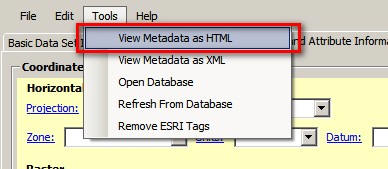
Displays the metadata file in HTML format using the IE web browser and the stylesheet MGMG.xslt found in the stylesheets folder of the installation directory. You will be prompted for a filename to save the HTML file. Cancel the dialog to create a temp file for display. - 'View Metadata as XML'
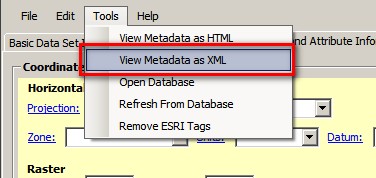
Displays the metadata file in xml format using the default web browser. - 'Remove ESRI Tags'
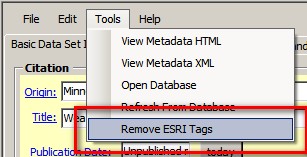
Removes all ESRI-inserted (non FGDC) elements from the metadata record. - 'Find and Replace'
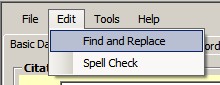
Performs a global search and replace on the entire metadata record.
Please Note: This affects information shown in the MME user interface only, and does not include information stored in the metadata record but not displayed in any tab of MME.
Common Features/Buttons Across Tabs
These buttons are located throughout the MME user interface.- 'D' or 'default' button
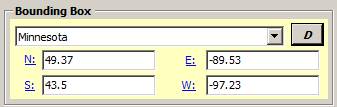
This button sets the current element to the default value stored in the Minnesota Metadata Editor Microsoft Access database (metadata.mdb). - 'Today'

This button sets the associated date field to today's date. - Check URL

This button verifies the availability of online linkage URL(s). By clicking on the purple check mark next to the URL, the user is able to verify the availability of the URL(s) entered.
- 'Open Database'
-
Customizing the Minnesota Metadata Editor Database
The MME utilizes a Microsoft Access database to supply default information within the user interface. Information stored in this database can be modified by the user to include new data or to change defaults that are used by the 'Set Default' buttons. Making these changes requires that the editor have Microsoft Access installed locally on their machine.Back to top
Database Structure
The database is structured to align closely with the flow of the user interface. As such, all tables are named according to the location in which their information resides in the MME user interface. All tables that have information located on tab 1 of the user interface begin with a 1. All tables that store information located on tab 2 of the user interface begin with a 2. All tables that store information located on tab 3 of the database begin with a 3. The tables are also ordered sequentially by letter. As such, when sorted by name, the tables generally flow with the order of the elements as they are located in the user interface, starting with the top left.
Each table has a column in it called 'default'. This column controls what is selected in MME when the user clicks on the 'D' button adjacent to the field. Users may change the defaults used by MME by selecting the checkbox next to the entry of their choice. Note that only one value can be set as the default per table so you will need to uncheck the currently selected default when selecting a new one.
Editing the Database
To modify the MME database, take the following steps:- Navigate to Tools --> Open Database.
- Locate and open a table of interest (e.g., "1b_Publisher").
- Add new information by adding a new row to the table and entering your own data.
- Change the default by selecting a new default entry and deselecting the existing default entry.
- If you don't want anything to be selected as default for a particular field, deselect all checkboxes in the table.
- Close the database.
- Click on 'Refresh from database' to update the MME user interface. You will need to click this button for each tab where changes should be reflected.
Special Database Edits
There are some edits that require changes to be made in the 'MME' table. These include any compound element behavior settings. Any time a change is made in the MME table, the editor must be closed and reopened for the new settings to take effect.
Specifying Spell-check Behavior
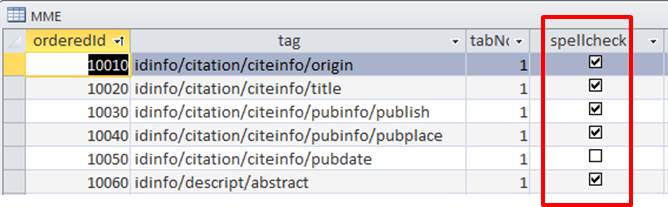
The MME table contains a column for specifying which fields are searched when a user spell-checks a metadata record. This field is called spell-check. This field can be enabled (checked) or disabled (unchecked) for each element in the MME user interface. Fields that have the spell-check field checked (enabled) will be included when the spell-check feature is used from the MME user interface. By default, most free-text fields are set for spell-check.
Setting Compound Element Update Behavior (Cluster Update Behavior)
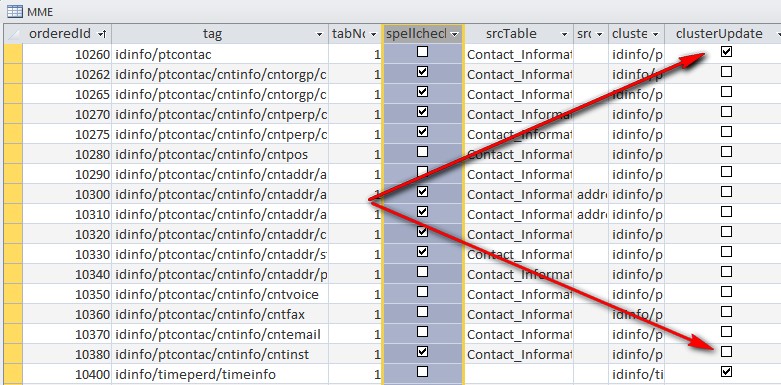
Compound element update behavior affects the way MME updates compound elements in a metadata record. Compound elements are elements that contain other elements. For example, the contact information element is a compound element that is comprised of fields such as contact person, contact address, etc. The MME user interface does not expose the entire set of elements contained in the FGDC content standard. As such, there are some cases where only portions of a compound element are available for a user to edit them. Users may choose to specify whether or not MME replaces an entire compound element when saving information to the record or to only save the individual elements within the compound element that were updated. The MME table allows the user to specify settings for each compound element individually. By default, all elements are set to replace the entire compound element. It is recommended that users retain this default setting unless there is a good reason to change it for particular fields.
This is set using the clusterUpdate field in the MME table. If you would like to replace the entire content of a compound element, select the clusterUpdate checkbox for that element. If you would like to only update individual elements within a compound element, deselect the clusterUpdate checkbox for that element. If an entire compound element is replaced by MME, all individual components of that element are replaced. If the individual elements of a compound element are replaced instead of the entire compound element, then some elements may not be overwritten within a compound element. After this is done, you will need to close and re-open the editor for the changes to take effect.
Configuring the MME to Point to a New Database Location
Users can choose to point to a database that is stored in a different location than the default location provided by MME. This allows the MME database to be shared by multiple users if desired. By default, the MME database is placed into the install directory on the user's machine, in a sub-directory called template (usually "C:\Program Files\Minnesota Metadata Editor\template"). MME also creates an editable copy of the MME database in each user's user directory (e.g., "C:\Users\yourName\AppData\Roaming\MnGeo\Minnesota Metadata Editor v3.1.1"). MME makes this copy so that the operational database is not write-protected.
The MME database location is specified in a setting stored in the config.xml file associated with the MME. This file is located in the install directory on your machine (usually "C:\Program Files\Minnesota Metadata Editor\template). When MME starts, it looks for the database in the following locations:
- Check and use if the mdb exists where MME config file says (if one specified)
- Check and use if the mdb exists in user's own area
- Otherwise make a copy of the one under template into the user's own area.
You can copy and paste the MME database to a new location and point to this new location in MME's config.xml file. To specify the new location where the metadata.mdb is stored, change the entry called "MdbFilepathname" to your new location. You must include the full path to the database, including the database name in the entry (e.g., C:\temp\metadata.mdb). Make sure to close and re-open the editor once you have made the change.
It is recommended you leave a back-up of the original database in the original installation directory so that the editor has a failover database to access if the new location is unavailable.
-
Reference Documentation
Back to topMinnesota Geographic Metadata Guidelines, version 1.2
MGMG 1.2 The Minnesota Geographic Metadata Guidelines provide a common approach for documenting all types of geographic data. They have been designed to be straightforward, intuitive and complete.
MnGeo Metadata Resources
Don't duck metadata!
Documenting Geographic DataFGDC Content Standard for Digital Geospatial Metadata (CSDGM)
The Minnesota Geographic Metadata Guidelines are based on the Federal Geographic Data Committee's (FGDC) Content Standard for Digital Geospatial Metadata (CSDGM). Please visit FGDC CSDGM for more details.
Data.gov
Data.gov is a searchable catalog of federal data, much of it geospatial, that provides access to datasets and various tools. You may access data in formats including XML, text/CSV, KML/KMZ, feeds, XLS, or Esri shapefile.
National Spatial Data Infrastructure (NSDI)
The NSDI is a physical, organizational, and virtual network designed to enable the development and sharing of this nation's digital geographic information resources.
Innovate!, Inc.
Innovate!, Inc. is an 8(a) company that provides geospatial services for federal, state, and private clients. They are creators of the EPA EME editor.