Minnesota Geospatial Image Service: ArcGIS Pro instructions
Step-by-step instructions for connecting to MnGeo's
Geospatial Image Service using
Esri's ArcGIS Pro software.
Adding the Service to ArcGIS Pro the First Time
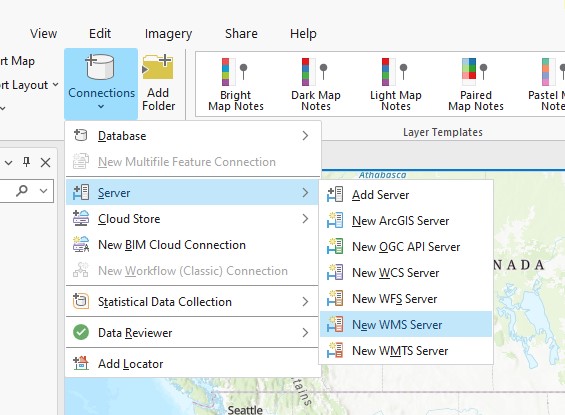
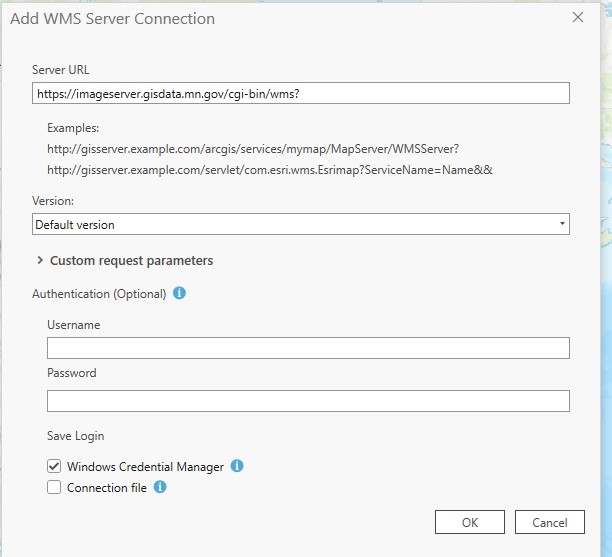
- Open ArcGIS Pro and add new WMS Server. Click on the 'Connections' pull-down menu, under the 'Insert' menu. Select 'server' and then 'New WMS Server'. Server URL: https://imageserver.gisdata.mn.gov/cgi-bin/wms?
- Leave everything else as defaulted, click 'OK'
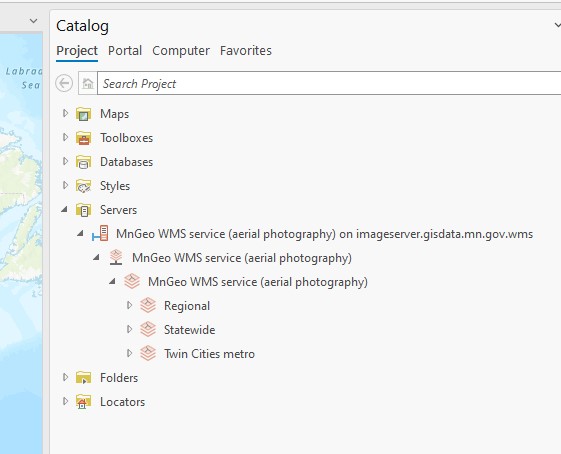
- Your project catalog will now have MnGeo's WMS service available. As you open the tree listing, you will note that there are 3 folders: Regional, Statewide and Twin Cities Metro.
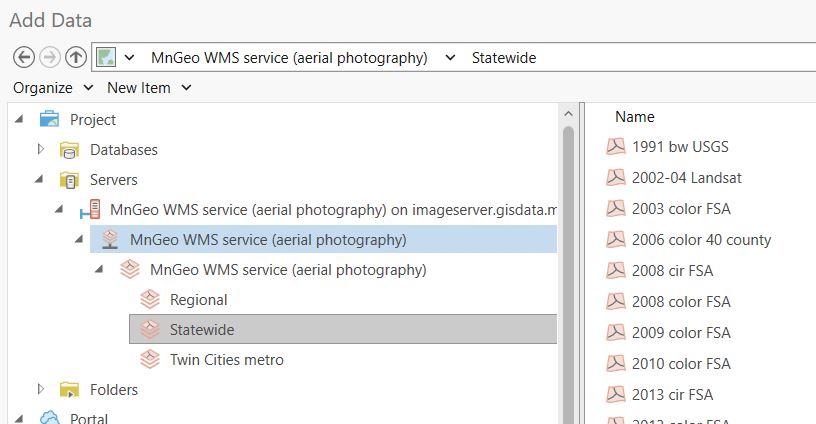
- You will find the new imagery in the appropriate folder.