Minnesota Metadata Editor FAQ
This page answers frequently asked questions about the Minnesota Metadata Editor (MME). Click on a question to jump down to the answer. For more complete help, see the MME help webpages.- How do I create a template file so I don't have to type the same stuff over and over?
- How do I create an HTML version of the metadata?
- The text I typed after a hyperlink doesn't show up in the HTML - how do I fix this?
- How do I enter and edit contact information?
- How do I fill out the detailed entity and attribute fields?
- Why are weird characters appearing in the HTML version of my metadata?
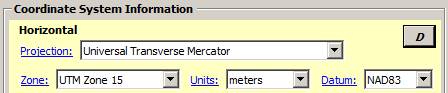
- Why doesn't the default button for the horizontal coordinate system fields work?
-
How do I create a template file so I don't have to type the same stuff over and over?
Back to top- Open MME
- Fill out all of the fields that are always the same for the metadata records that you write, or that rarely change.
Example 1: If you are always documenting data that your organization creates and publishes, fill out the "Origin" and "Publisher" fields with your organization's name.
Example 2: If your bounding box coordinates are usually the same for all your datasets, fill those in. - Leave all the other fields blank. For example, the "Title" field will be different in each record you create, so leave it blank in your template.
- Save the template with a filename such as "my_template.xml"
- When you need to document your next dataset, open the "my_template.xml" file in MME, save it as another name appropriate for that dataset, then fill in the fields that are specific to that data. The fields you had filled out in the template are already done and you never need to type them in again. Yay! If something already filled out in your template is different for a particular dataset (e.g., a different organization published your data), then just edit it that one time.
- Open MME
-
How do I create an HTML version of the metadata?
Choose 'View Metadata as HTML' from the Tools menu.Back to top
A dialog box will open: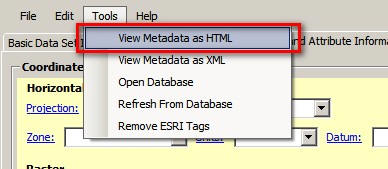
- To save the HTML file, type in a filename and choose 'Save'
- To just view the HTML file temporarily without saving, choose 'Cancel'
-
The text I typed after a hyperlink doesn't show up in the HTML - how do I fix this?
If you type any text after a URL within a paragraph, the text will be saved in the XML version of the metadata, but it will not appear in the HTML. Fix this by starting a new paragraph (typing a line-break) after the URL.Back to top
Examples:- In the following example, the text, "CTU boundary files are available for previous years" will not appear in the HTML since there is no line break after the URL:
"The Minnesota Geospatial Advisory Council Domains spreadsheet is an up-to-date resource for Minnesota CTU ID codes and names: https://mn.gov/mngeo/assets/MN_GAC_Standards_Domains_tcm1235-754645.xlsx CTU boundary files are available for previous years."
- In this example, all of the text will appear in the HTML since there are line breaks to start a new paragraph after the URL:
"The Minnesota Geospatial Advisory Council Domains spreadsheet is an up-to-date resource for Minnesota CTU ID codes and names: https://mn.gov/mngeo/assets/MN_GAC_Standards_Domains_tcm1235-754645.xlsx
CTU boundary files are available for previous years."
- In the following example, the text, "CTU boundary files are available for previous years" will not appear in the HTML since there is no line break after the URL:
-
How do I enter and edit contact information?
Contact information is stored in a separate Microsoft Access database named 'metadata.mdb' (stored by default in MME's 'portable' folder).Back to top- Advantage: you can reuse this information in all your metadata records without having to retype it.
- Disadvantage: in order to edit or add information, you need to open the database, make the changes, close the database and then refresh to make the changes accessible in the MME interface.
- Choose 'Open Database' from the Tools menu
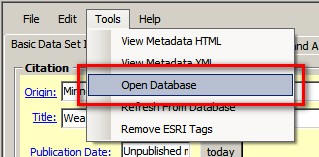
- Once the Access database opens, double-click on the Contact_Information table in the list to the left to open the table.
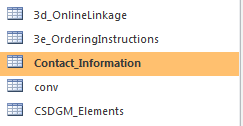
- Once the Contact_Information table opens:
- To edit an existing contact, find the record, click in the field you want to edit, and make the edits.

- To enter a new contact, type the information in the blank '(New)' record at the bottom of the list.

Refer to the name of the columns to ensure you are putting the correct information in the correct area:
cntorg: contact organization
cntper: contact person
cntpos: contact position
addrtype: address type (although this field is not included in the Minnesota Geographic Metadata Guidelines, it is required by the federal data.gov website, so if you leave this field blank, MME will automatically fill this in as 'mailing and physical' when the metadata xml is saved)
address1: contact address
city: contact city
state: contact state
postal: contact zipcode or postal code
cntvoice: contact telephone number
cntfax: contact fax number
cntemail: contact email address
- To edit an existing contact, find the record, click in the field you want to edit, and make the edits.
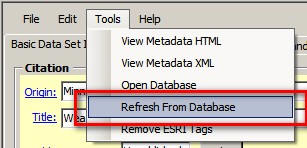
- Close Access and return to MME (the data is automatically saved), click on the Tools menu and select 'Refresh From Database'.
This refresh step must be done separately for the 'Basic…' and 'Distribution…' tabs in MME, both of which have Contact Information fields.
The refresh adds the new contact information you entered to the dropdown menu choices.
-
How do I fill out the detailed entity and attribute fields?
The terminology in this section can be very confusing, but if you follow the workflow below, you should end up with a nicely formatted table in the metadata HTML. Note that alternatively you can choose not to fill in these specific, separate fields and instead put the information in the free text field 'Entity and Attribute Overview':Back to top
On the Entity and Attribute Information Section, Detailed Tab:- In the Table(s) section, you need to create a record for your attribute table.
- click the (+) button next to 'Label'
- where it says 'new entity', replace that text with the name of your attribute table
- you can leave 'Definition Source' blank or add a reference to a domain of definition types if you have one (e.g., 'Oracle data dictionary')
- In the Definition field, type a description of the table, such as 'Attributes of birch tree disease locations'
- Now you can create records for each field in the attribute table. In the 'Field(s)' section:
- click the (+) button next to 'Label'
- below, replace the default text 'new_attribute' with the actual field name
- add a definition source reference if you want
- In the 'Definition' field, describe the meaning of the field in plain English
- Now you can go to the 'Permissible Values (Domains)' section, choosing a tab for the type of domain you need to document: Range, Codeset, Enumerated, or Unrepresentable. This section should work as you expect it. Add values and definitions, or a range, or codes as you need to.
- If you need to document another field in this attribute table, go back up to the 'Field(s)' section and click the (+) button again, then continue as before.
- If you need to delete a table, field or attribute, click the (-) button next to 'Label'.
Example:

- In the Table(s) section, you need to create a record for your attribute table.
-
Why are weird characters appearing in the HTML version of my metadata?
This is an issue with HTML, not with MME. Unexpected characters appearing in the HTML (for example, ’ instead of an apostrophe) can result from copying-and-pasting text from a formatted document, such as Microsoft Word, into MME. Special formatting characters, such as those that create smart/curly quotes and apostrophes and non-breaking spaces ( ), can be translated into foreign-accented characters in web-based HTML. Since they may not display in the MME interface or the XML file, they can be tricky to find and delete.Back to top- To fix the problem, delete the formatted text and re-type it in. For example, delete the smart apostrophe and retype an apostrophe (which will then appear in your HTML as a plain text straight quote mark).
- To avoid the problem in the first place, use one of these options:
- type text directly into MME
- save existing formatted text as plain text before pasting into MME
- in the original document, turn off auto-formatting that creates smart quotes before you type (e.g., instructions for Word 2013)
-
Why doesn't the default button for the horizontal coordinate system fields work?
Although we highly recommend creating a template file instead of using the default buttons (see Template FAQ above), the default buttonBack to top does provide another way to quickly populate fields where the information you want to enter is always the same. It is available only for selected fields in the interface, for example, the bounding box coordinates.
You need to set the default values in MME's Access tables, such as shown for the bounding box coordinates below. Instructions for setting default values are in this MME help page.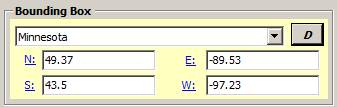
All fields seem to work as expected if you follow the instructions, with the occasional exception of the horizontal coordinate system fields:
These fields are governed by the Access table "HorizCoordSys_cluster" which is inter-related in a complex way with the other Access tables that contain horizontal coordinate system information (2b_CoordinateSystem; 2b_GeographicParams; 2b_MnCCSParams; 2b_StatePlaneParams; 2b_UTMParams; 2c_Units; 2d_Datum). It is very confusing to set these defaults. Depending on how these tables interact, sometimes not every field is populated correctly, for example, the Minnesota County Coordinate System cluster can fill in the Zone incorrectly or not at all. If you are having trouble using the default buttons, or you want to fill out fields that don't have a default button, it's much easier to create a template file.